 Yuzudesk
How-to guides / Set your tax rate
How to set your tax rate
Goal: add the right sales tax to your invoices, and see how much of your income to put aside for income tax.
Yuzudesk has two separate tax settings:
- Sales tax rate (HST, GST, VAT and similar): added on top of your invoices and paid by the brand.
- Tax set-aside %: a share of what you earn that Yuzudesk shows you to put away for income tax.
Yuzudesk helps you track and set aside money for taxes. It doesn't give tax advice. Your accountant or tax office can tell you whether you need to charge sales tax, at what rate, and how much to put aside.
Part 1: Sales tax on your invoices
-
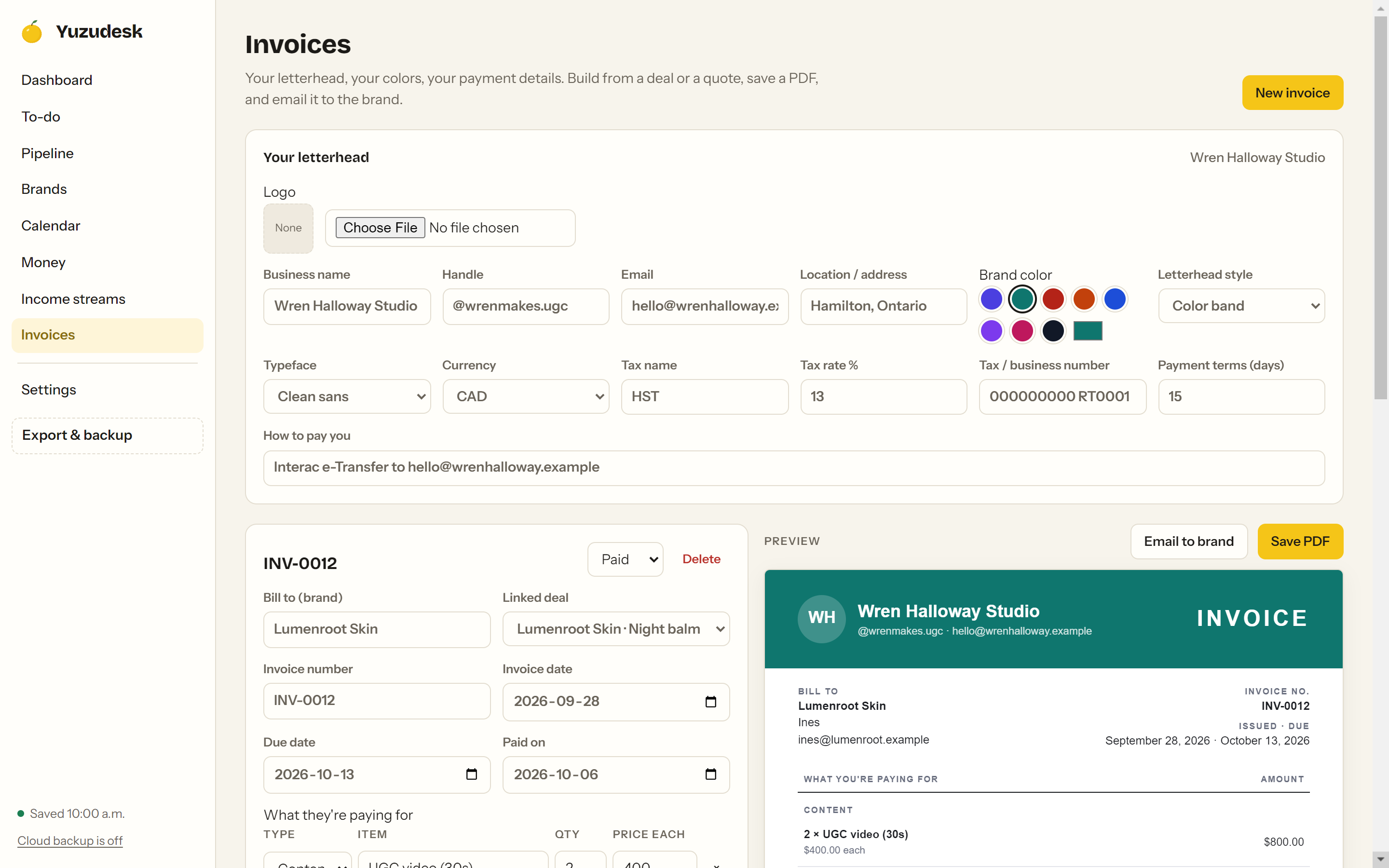
Go to Invoices and click Your letterhead to open it. (The same fields are under Settings → Business & letterhead.)
-
Fill in:
- Tax name: what your invoices should call it, for example HST, GST or VAT.
- Tax rate %: the rate, for example 13.
- Tax / business number: optional. If you add it, it prints at the bottom of every invoice.
-
Check the invoice preview on the right. Under the items you'll see Subtotal, then your tax name and rate with the tax amount, then Total with your currency.

-
Don't charge sales tax? Set Tax rate % to 0. The tax line disappears from your invoices.
Your changes save as you type.
Important: Yuzudesk uses one sales tax rate for all your invoices, including ones you've already made. If your rate changes, open each invoice you've already sent and click Save PDF to keep a copy as it was, then change the rate.
Part 2: Your tax set-aside
-
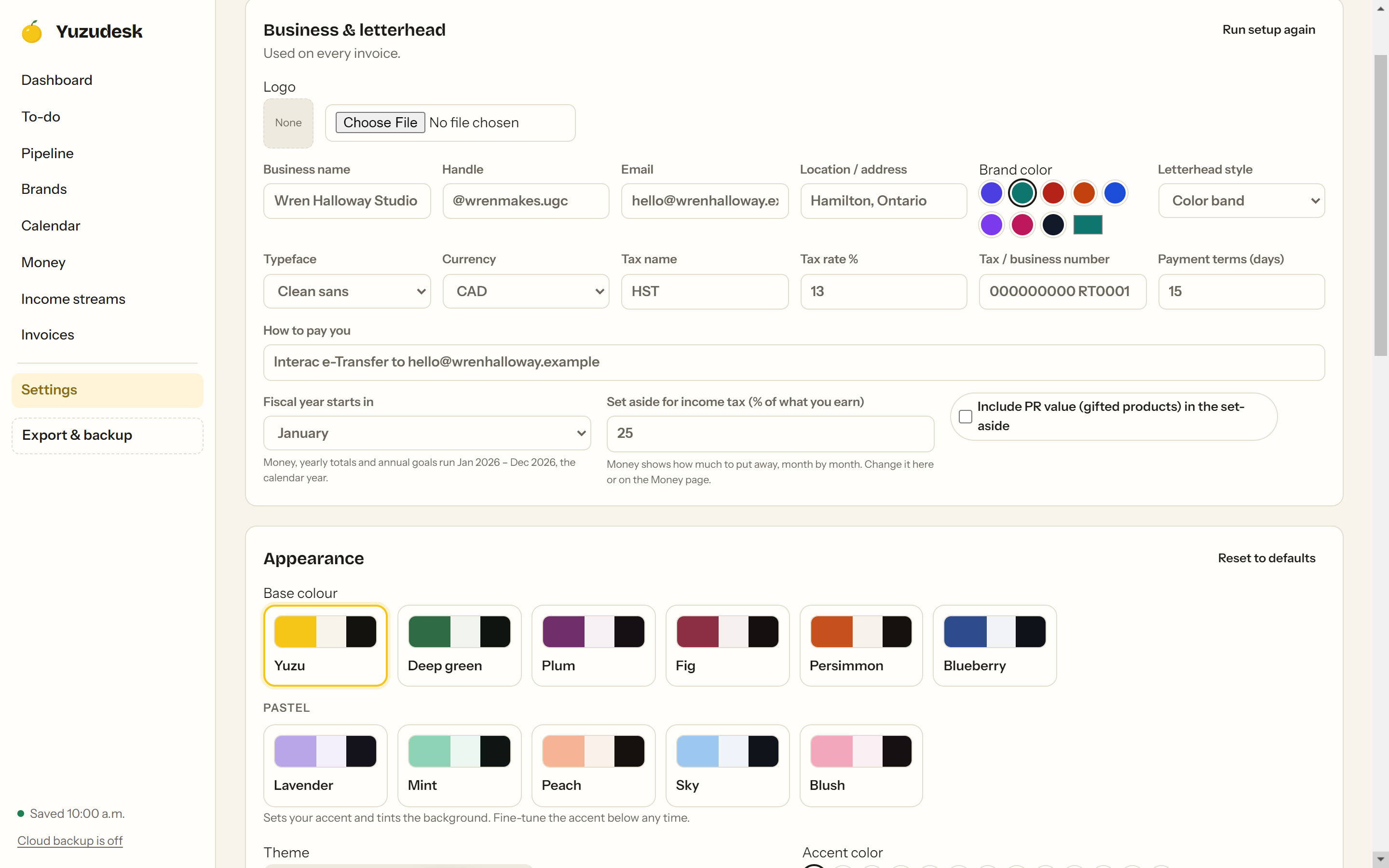
Go to Settings. Under Business & letterhead, find Set aside for income tax (% of what you earn) and enter your percentage. New workspaces start at 25.
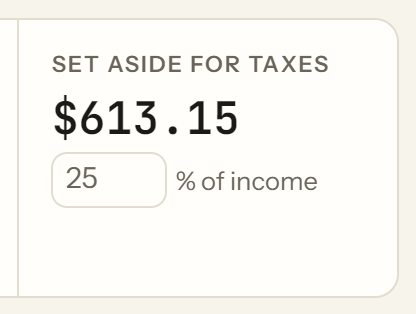
You can also change it on the Money page: the Set aside for taxes card has a small box where you type the percent.
-
Optional: tick Include PR value (gifted products) in the set-aside if you want gifted products counted too. (On the Money page it's Include PR value in my tax set-aside, in the PR & gifted products section.)
-
See how much to put away:
- The Set aside for taxes card on Money shows the amount for the month or year you picked.
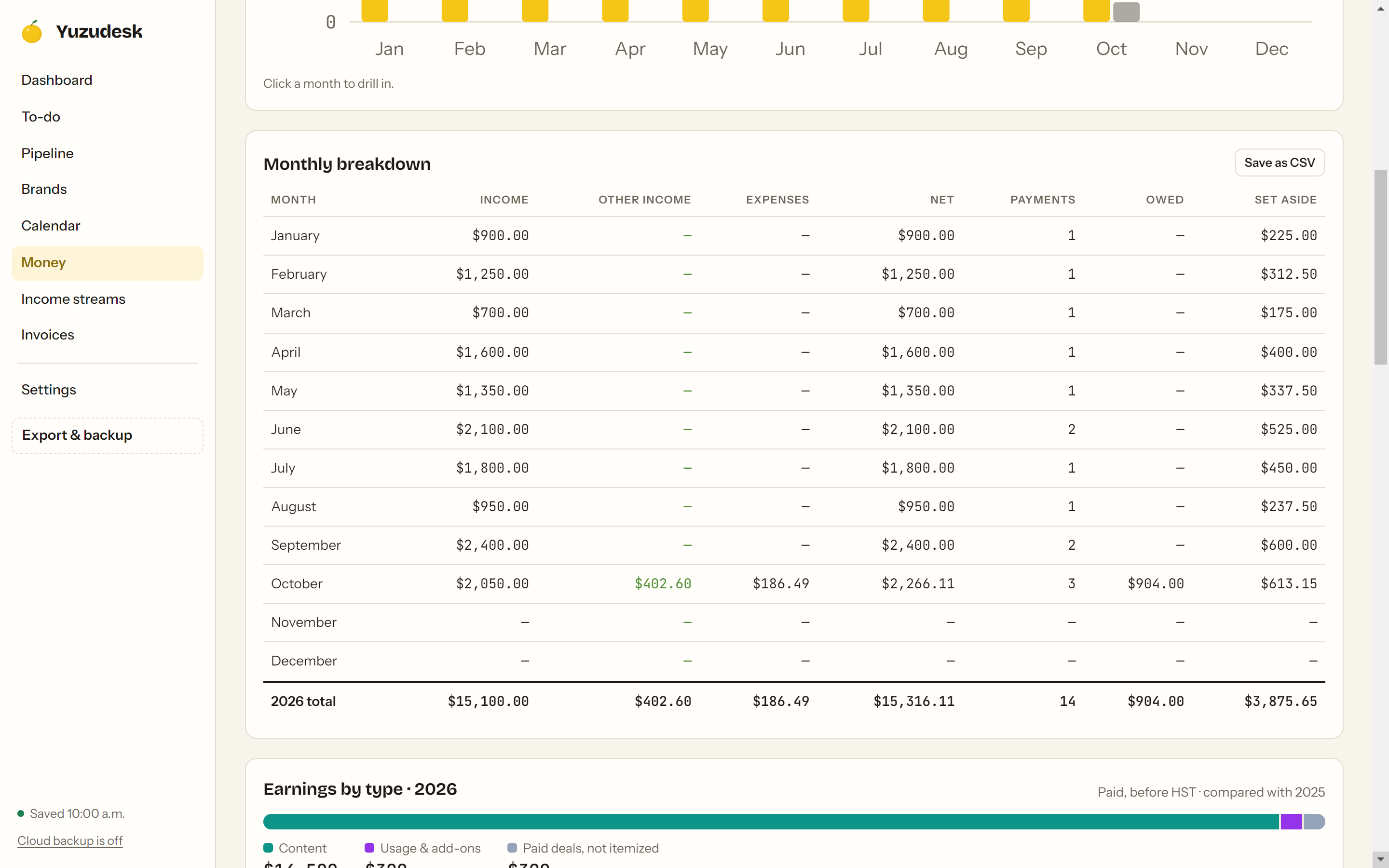
- The Set aside column in Monthly breakdown shows it month by month.
How the set-aside is worked out
Set-aside = your % × (brand deal income paid, before sales tax + other income after platform fees, + PR value if you ticked it).
Expenses don't lower it. It's a simple guide to what to move into savings, not the tax you'll owe.
Tips
- If you skipped it during setup, the Money step of setup asks for the same things: Sales tax name, Sales tax rate % and Set aside for income tax %. You can run it again from Settings with Run setup again.
- Sales tax you collect is not counted as income in Money. It's shown separately in the Income list and your exports.
- If the set-aside amount on the Money page doesn't change right away after you edit the percent, pick another month and come back.